
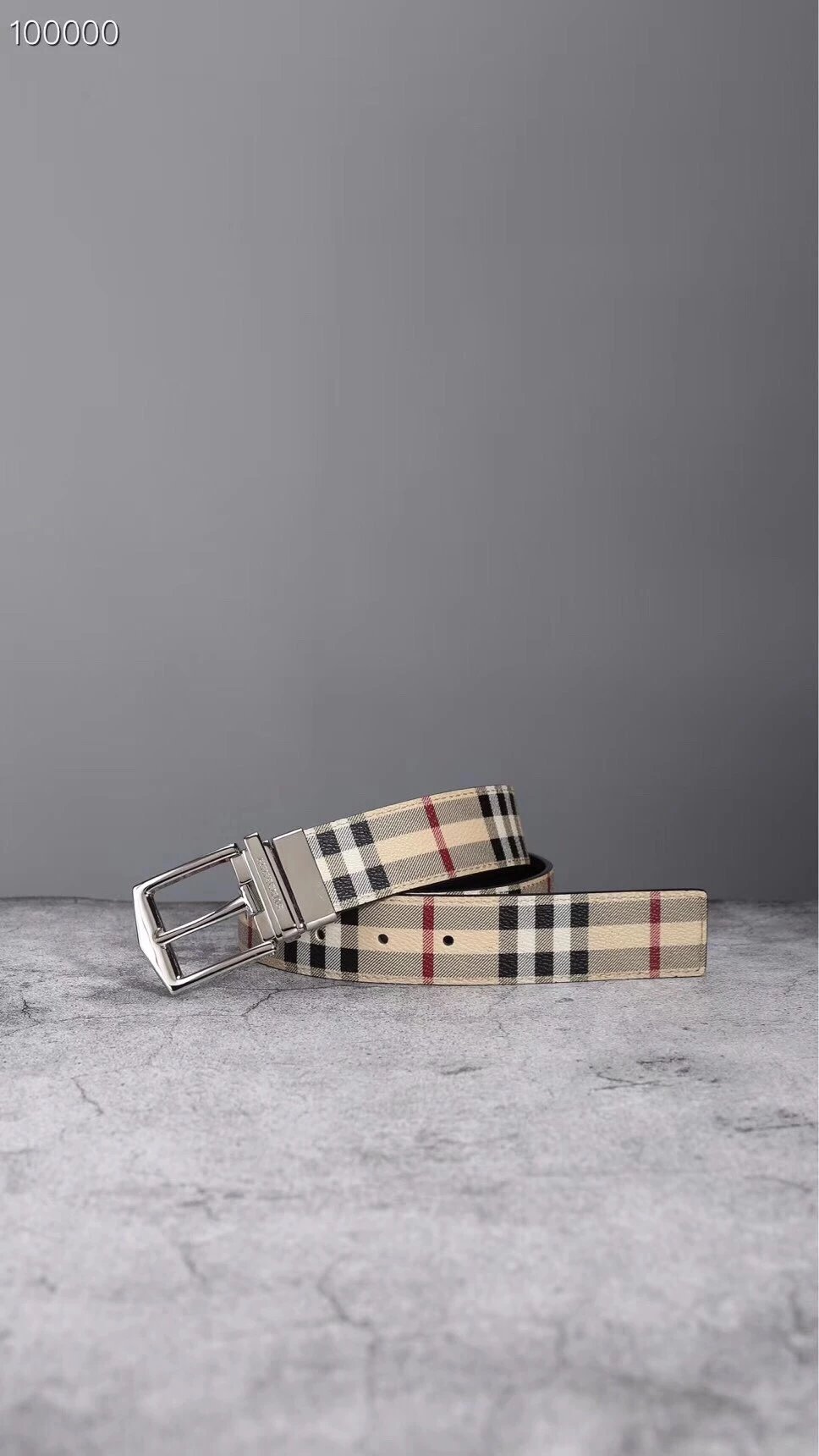
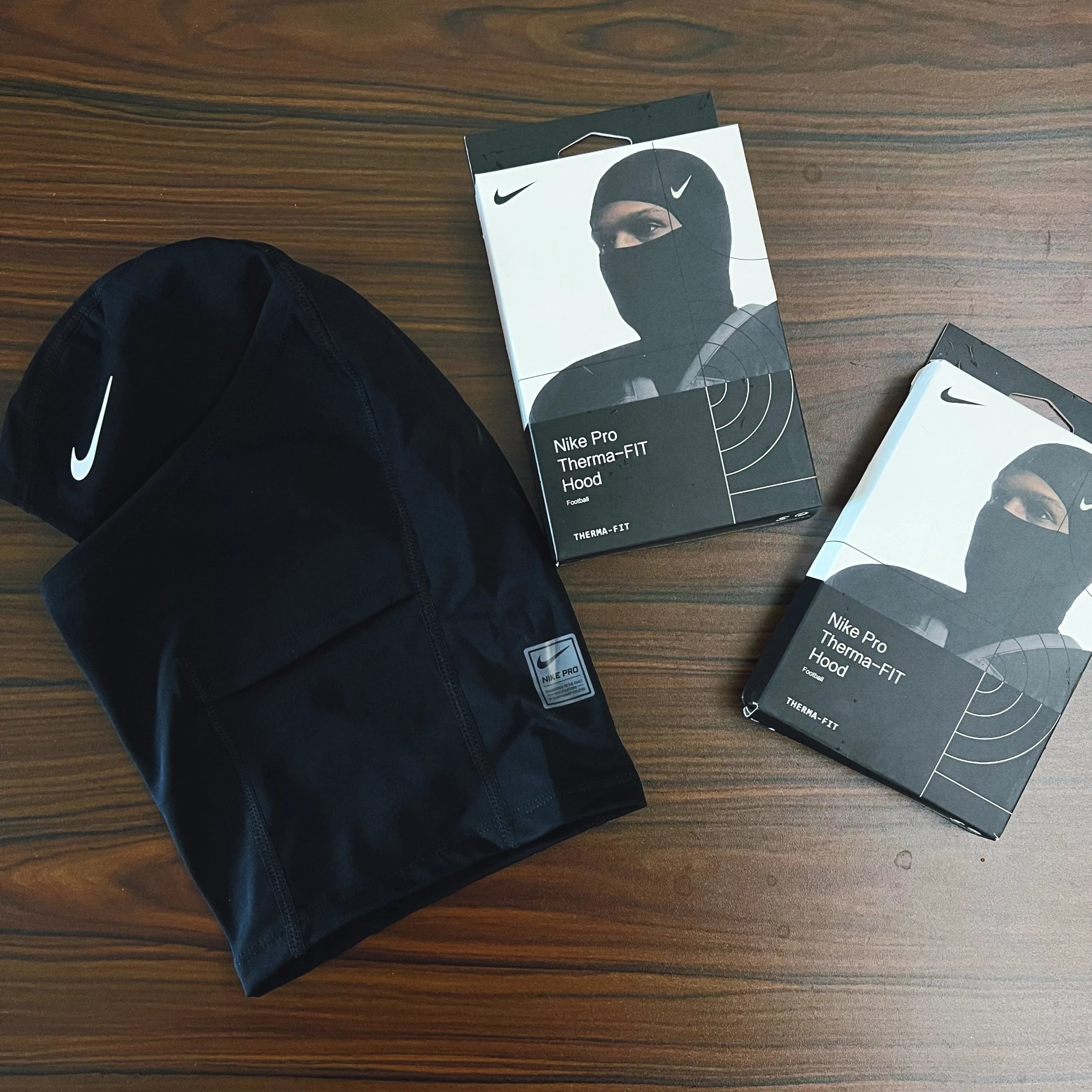
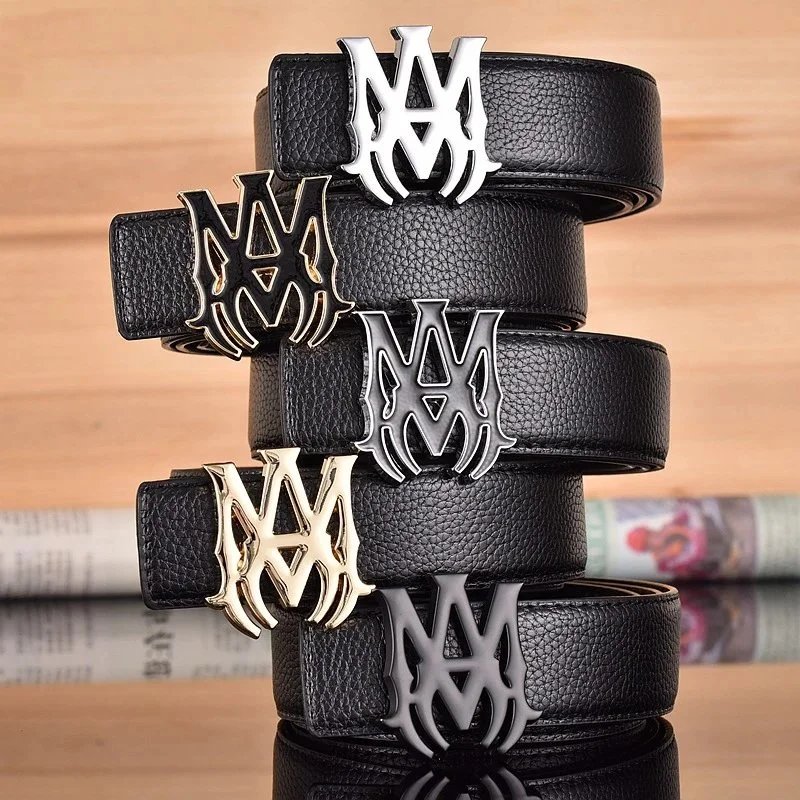
Shoes
Find footwear by silhouette, then narrow to sneakers or other shoe sections. Open the exact listing to compare seller photos with any available inspection images.
See the photo. Look closer. Explore the Hipobuy spreadsheet by category, name or reference image, then compare source links and available QC photos.
A photo catches your eye. The details help you decide.
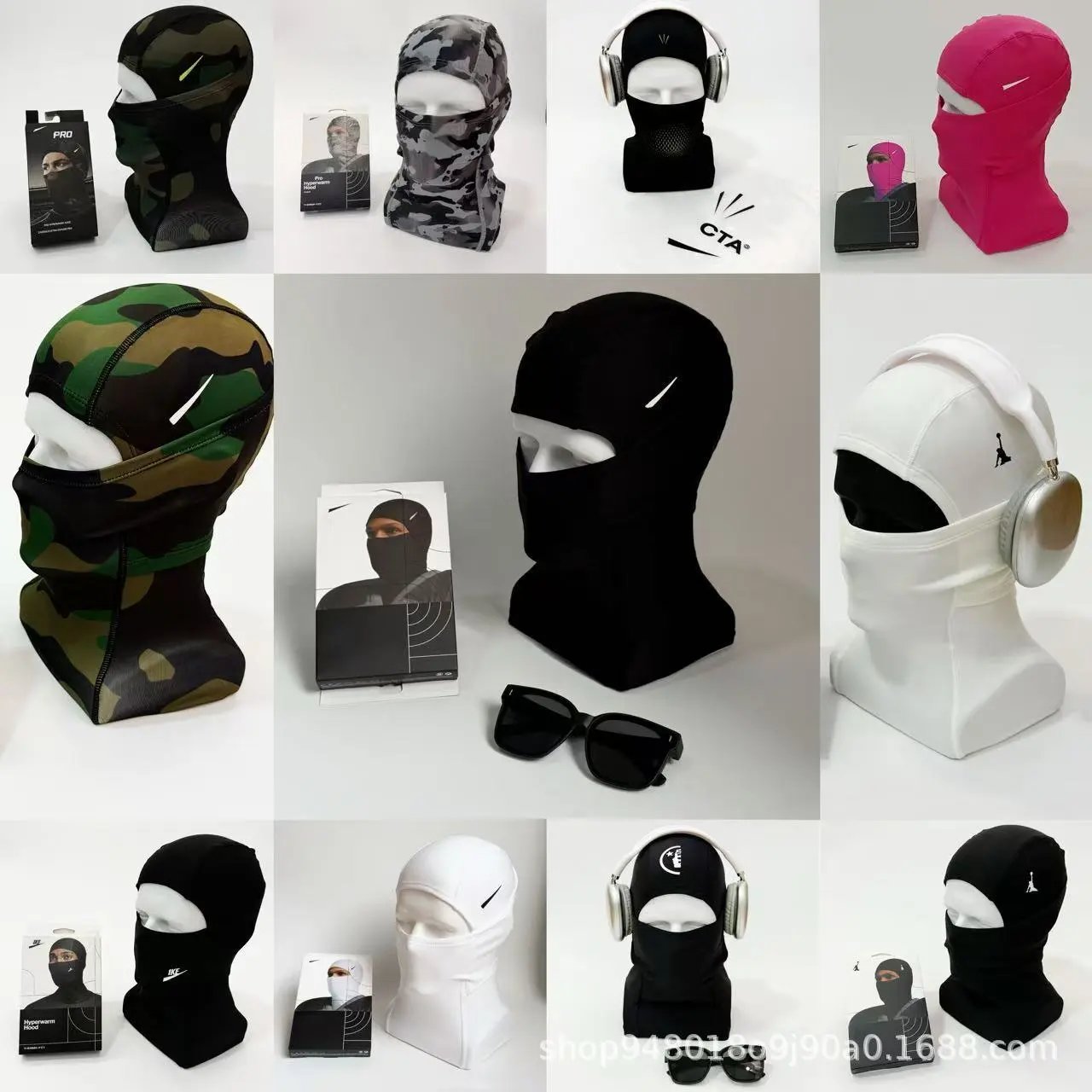
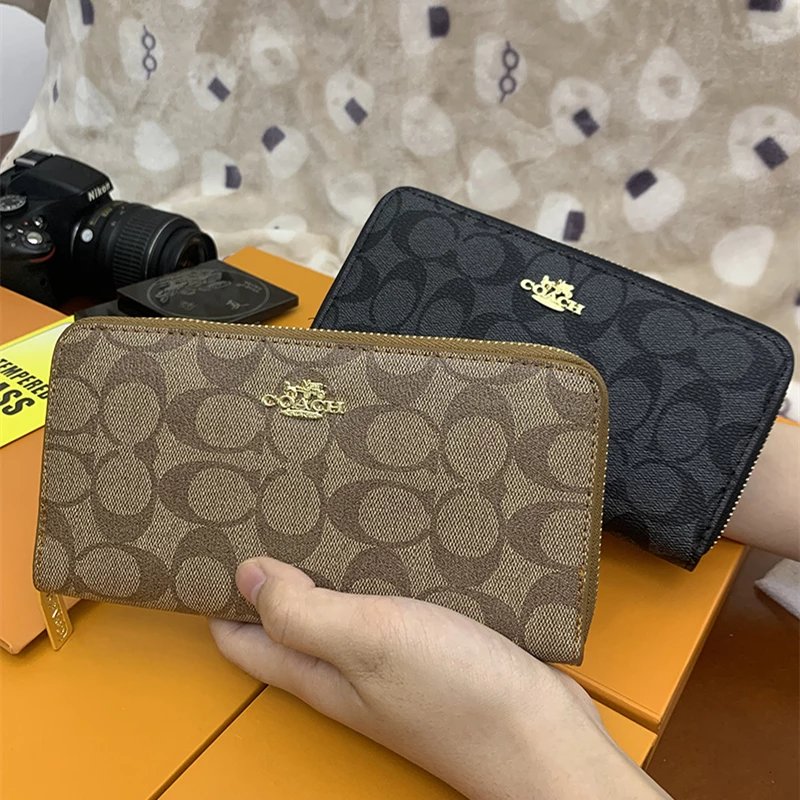
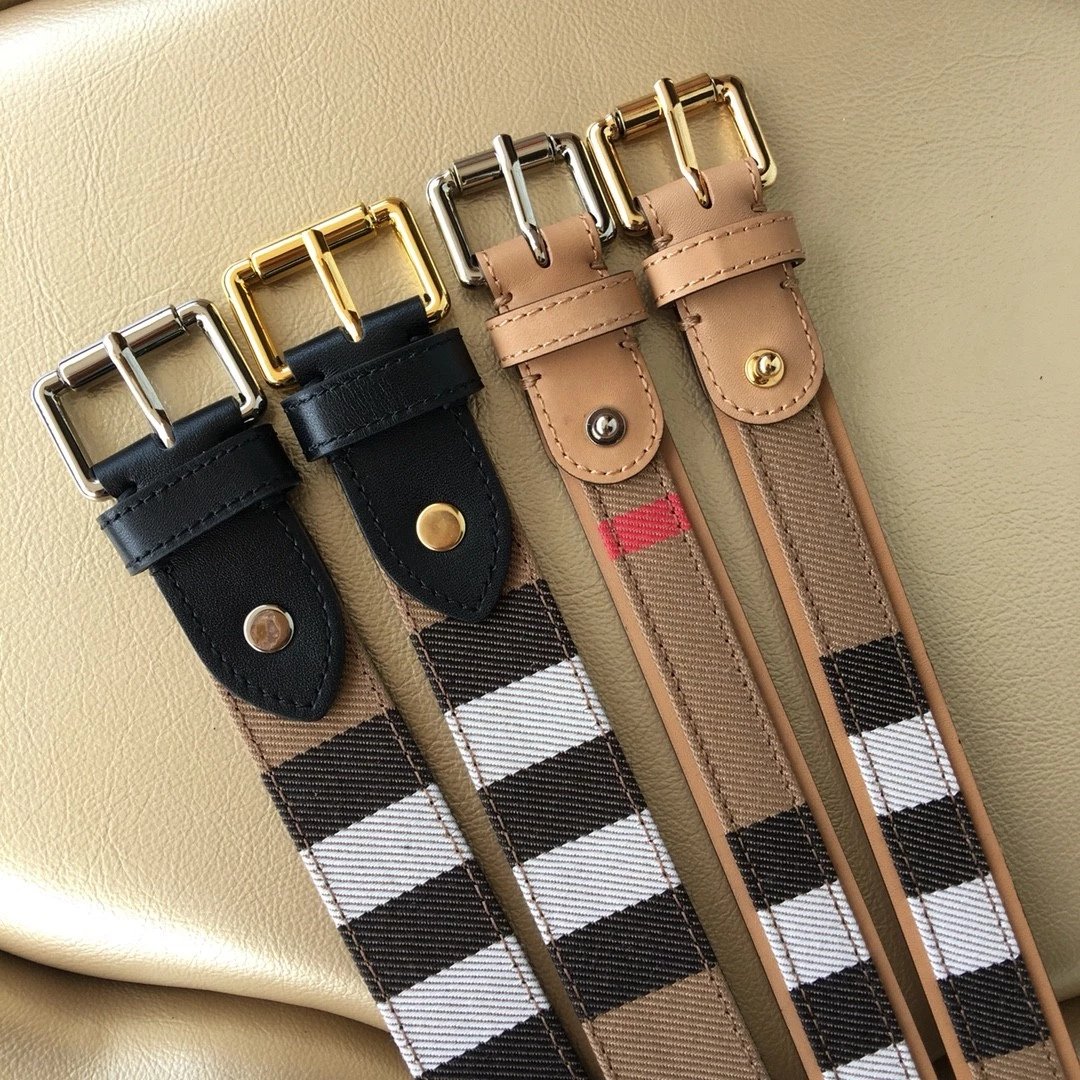
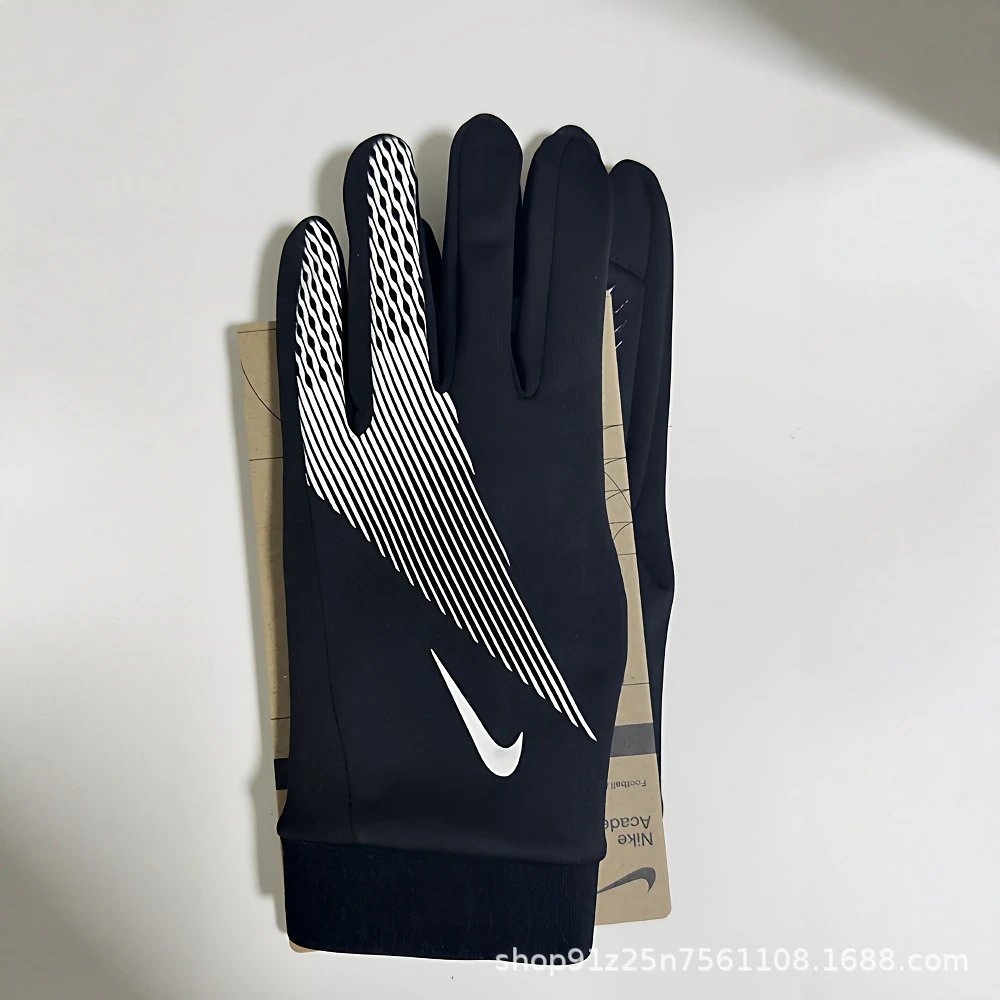
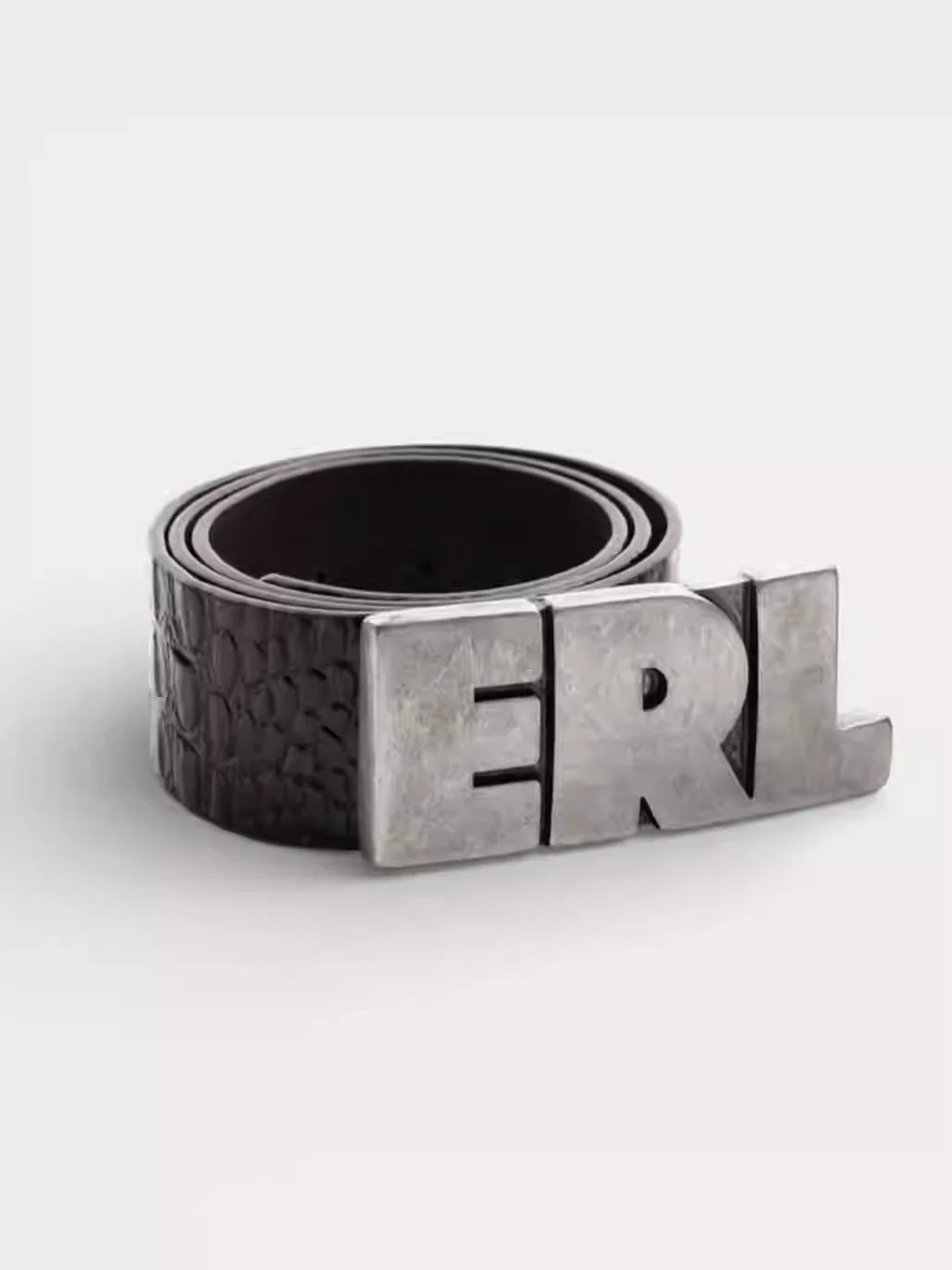
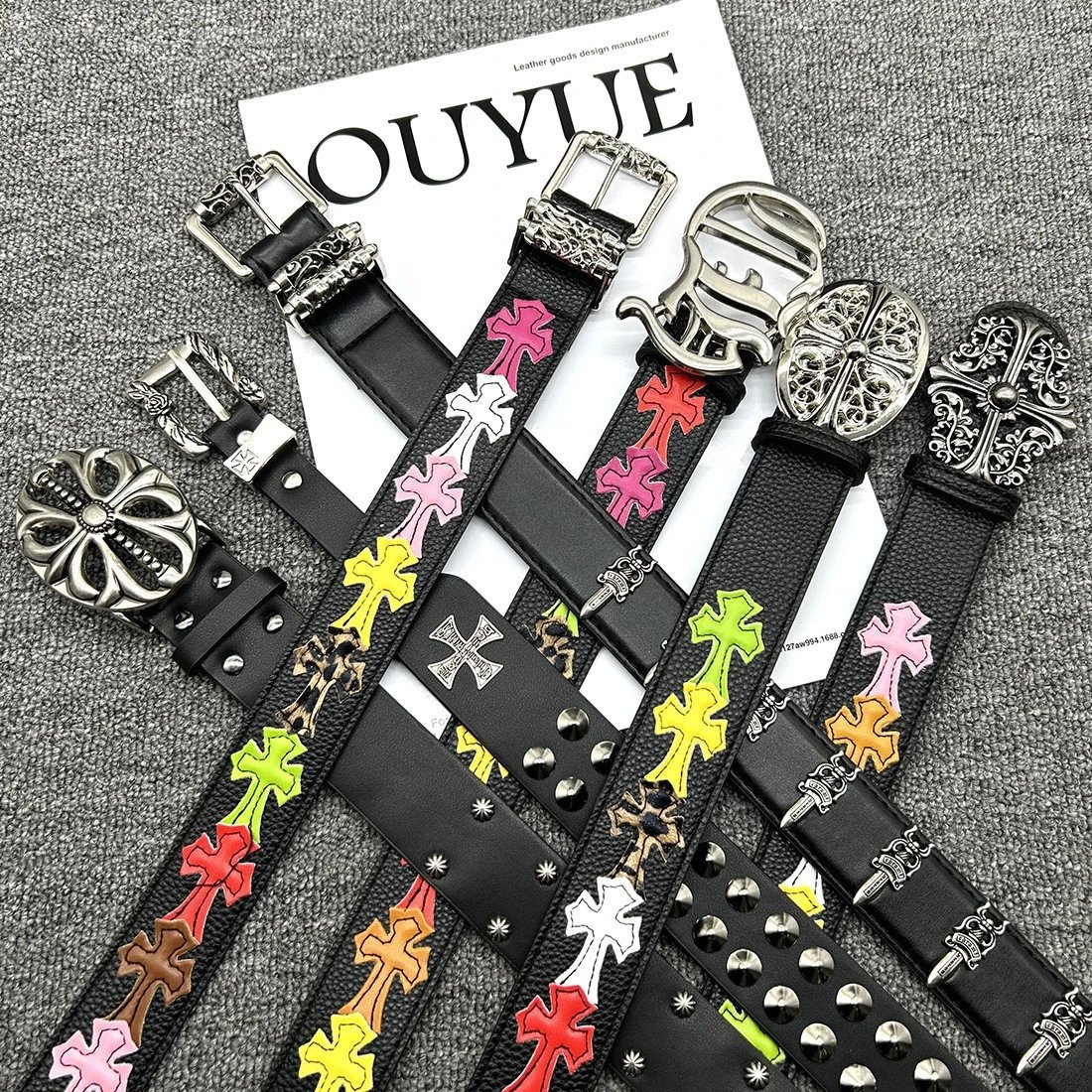
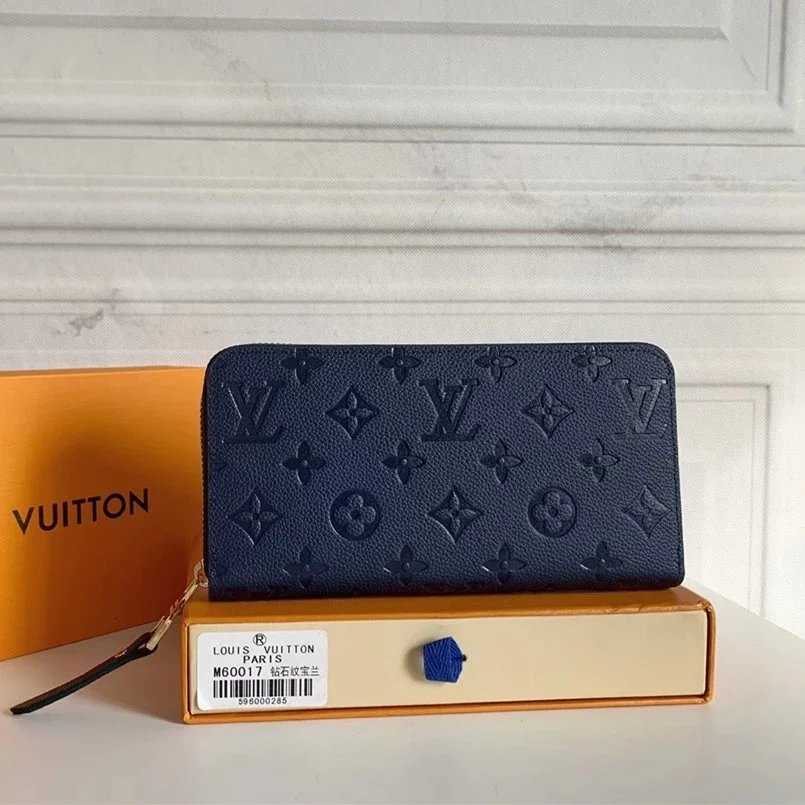
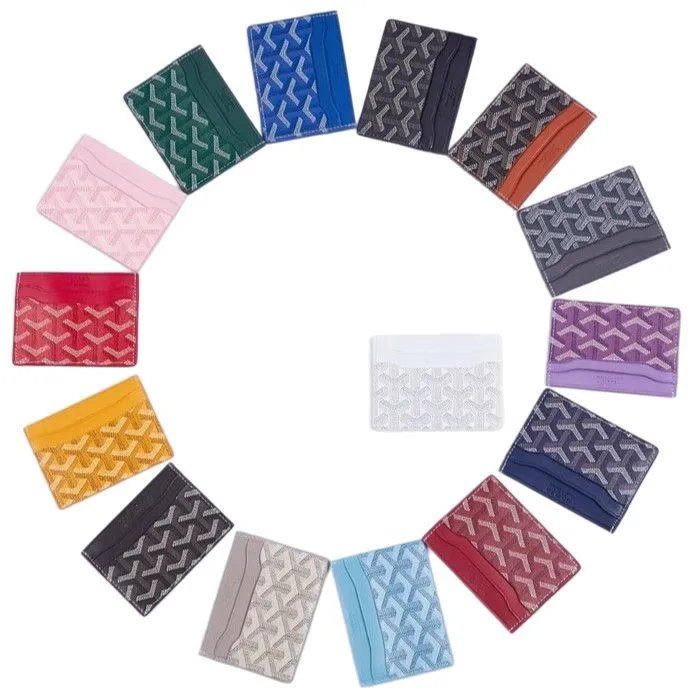
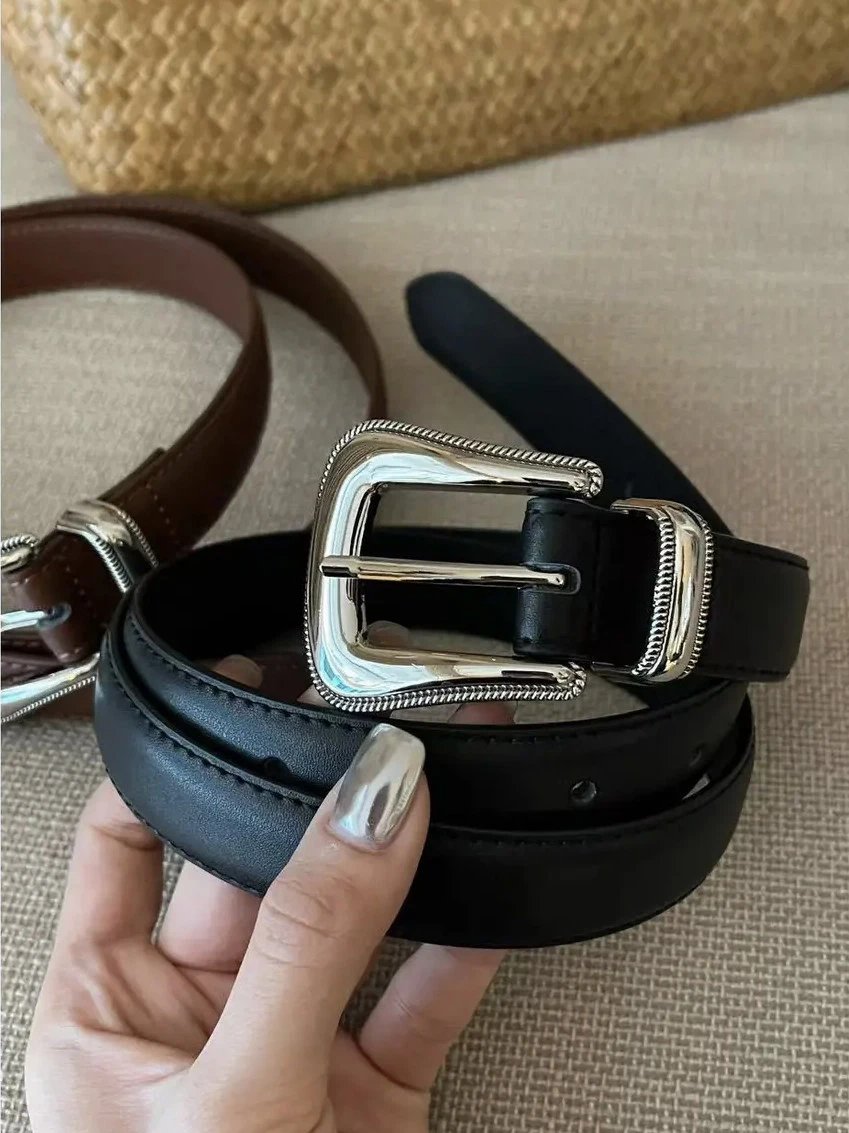


Find footwear by silhouette, then narrow to sneakers or other shoe sections. Open the exact listing to compare seller photos with any available inspection images.
Start with the kind of top you want: a T-shirt, hoodie or knit. Compare the pictured design and save the precise source link rather than relying on a similar title.
Browse trousers and shorts in their own groups. Check the product and style photos together, then confirm the pictured option on Hipobuy.
Explore jackets and outer layers. Available inspection close-ups can help compare visible seams, fastenings and surface details with the seller’s presentation.
Find matching sets without splitting the search across separate clothing categories. Confirm the pieces included on the seller listing.
Browse pictured everyday basics and follow the exact listing for its current options. The sheet provides comparison prices, not a final order quote.
Move from bags to hats, watches and smaller accessories through the subcategories. Similar-looking details can belong to different listings; compare their own photos.
Explore electronic finds by their source links. Use the seller’s specifications to check compatibility and function; appearance alone cannot answer those questions.
See the photo. Look closer. Explore the Hipobuy spreadsheet by category, name or reference image, then compare source links and available QC photos.
Product links, photos and your next step.
Hipobuy Sheetz is an independent product guide for browsing photos, comparing listing prices and opening original product links. Start with the homepage previews, use Spreadsheet for a more focused search, or open Categories to explore a particular kind of item. Each product page brings its seller images, pictured styles and available QC together. This site is separate from Hipobuy Lists and from the official Hipobuy service; purchases and order management take place on Hipobuy.
Search a product name or a descriptive keyword, then use the category and brand controls to reduce the results. Choose Newest to explore recent additions, or a price order when comparing your remaining choices. Filters update the listing as you choose them, and pagination keeps those choices. If the results become too narrow, remove an individual filter beside the results or use Reset to begin again; a similar title alone does not identify the same seller listing.
Open Image Search and upload, drop or paste a clear product photo. A photo focused on one item is easier to compare than a busy collage. Once the results arrive, open promising matches and compare the shape, visible details, source link and available QC yourself. Similarity is a starting point, not proof of the same model, seller or quality. The returned set may have multiple pages; moving through them explores that set rather than starting a new search.
The guide starts in USD, and the currency menu changes the displayed comparison prices across the page. You can switch currencies while viewing a listing or product without choosing an order option. A displayed price is a browsing reference; different pictured styles may have different current quotes. Before purchasing, confirm the exact item and option on the Hipobuy purchase page. Switching currency here does not fix the amount charged for an order.
Seller photos present the listing and its pictured styles, while QC photos are existing inspection images associated with that product. Use the main gallery to understand the design, then compare visible details in the separate QC section. Open a photo to inspect the full original, because the page preview uses a fixed crop. QC may show a different individual unit or option, so it cannot guarantee the appearance, authenticity or quality of a future order.
Some listings have product photos but no inspection photos to display. Missing QC is not a quality rating and does not confirm whether the item is currently available. Compare the seller images and the exact source listing, or explore other results with relevant photos before deciding. If you proceed, use the inspection information for your own order when it becomes available on the purchasing platform; do not treat another buyer’s historical photos as approval of your item.
No. Style thumbnails only change the image preview here so that you can compare pictured colours or designs. They do not add an item to a cart, reserve stock or submit a size or colour to Hipobuy. When you open the purchase page, choose and confirm the actual option there and check its current quote. If two thumbnails look alike, compare the listing details on Hipobuy rather than assuming that the preview has selected an order option.
Product previews use fixed frames, so a tall or wide photo can be cropped in the page layout. Open the gallery viewer to inspect the full photo and move between images. Some QC photos load when you reach their section, so a photo that has not appeared yet may still be loading. If a photo reports that it is unavailable, retry later or compare another listing. The guide does not substitute an unrelated product image to fill the missing space.
Use Open Hipobuy Link on the product page. For supported Weidian listings, the button uses that listing’s original numeric product ID and includes our invite code. On Hipobuy, compare the source item, pictured design, actual option and current quote before continuing. Hipobuy may ask you to log in or complete its own verification. A link opening successfully is not proof of stock or a completed order, and unsupported source types do not receive a guessed purchase link here.
The source product ID identifies a specific listing on its original marketplace. Matching names or photos can appear on listings from different sellers, so compare both the marketplace and its product ID. For example, 7506441136 in a Weidian product link is the original item ID used for that source. It is different from a guide’s internal directory ID. Keep the precise source link when comparing finds or reopening a product on Hipobuy.
The copy control on a product page copies its original Weidian URL, including the itemID. Paste it into a note, browser field or the agent’s search field to retain the exact listing reference. Copying a source link does not copy the currently previewed style or choose an order option. If copying does not work in your browser, open the original listing link and copy its address there. Check the pasted URL and ID before relying on it.
Join Hipobuy opens the official registration page with our invite code. If you already have an account, use the official Hipobuy account pages to review purchases, choose order options and manage your order. This guide does not collect payments, create orders or provide order support. Registration and purchase links may earn us a commission. An invite code in a link does not itself confirm that an order qualifies for a promotion or that a commission has been recorded.